Friday, 16 January 2015

How to close the unresponding application to avoid haging

Some times the running application on your computer becomes unresponding which results in hang of computer.
To close the Unresponding/Hanging  Application just follow the following steps.
  1. Press Delete Button by holding alt and ctrl Button at a time.on doing a blue window will open with having different options
  2. Click on the Start Task Manager option.A window will open with different tag buttons..
  3. Select the Application you want to close.
  4. And then click the End Task Button the Selected application will smoothly closed.

How to Check the Performance of CPU & RAM on Windows

To Check the performance and usage of CPU and RAM just follow the following steps.
  1. Press Delete Button by holding alt and ctrl Button at a time.on doing a blue window will open with having different options
  2. Click on the Start Task Manager option.A window will open with different tag buttons.
  3. Click on Performance tag button.You will get performance window as shown in fig.

Thursday, 15 January 2015

How to Get your Computer Specifications

To get your computer specification just follow the following step.
  1. Click on the Start Button.
  2. Type run in the search box
  3. Click on the run icon.(Run window will open)
  4. Type msinfo32 in the run box of run window
  5. Then click the Ok Button 0r Run Button
  6. The following window will open,which contains all  information about your computer and hardware which are attached to your computer.
  7. To explore information click the + Buttons to explore more information as shown in the fig.


Wednesday, 14 January 2015

Dark Energy Reservoir:For Charging Smart Phones & Usb Devices

Now you can charge your smart phones for  a week or any other USB devices with this great handy Dark Energy Reservoir. The size of this massively powerful charger is a slight larger than the iPhone 5.It contains 8,000 mAh battery.
It allows you to charge devices even when the Reservoir is attached to an outlet. It can also charge two devices simultaneously.It has ability to retain its charge for one full year .So if you are in desperate need of a power backup for your smart phones & devices , this reservoir is indeed a worthy choice to make.Its price is only 129US$.


Zen Stand Charging Dock for iPhone 6

Zen Stand Charging Dock is for iPhone 6, iPhone5s & 5 iPad mini , iPod .
It is made by Jaban
Product Concept : There is a beach in Aomori prefecture Japan which is known as Shichiri Nagahama . This place is famous for precious stones, Nishiki ishi. This design is based on the actual stone which was washed ashore.Its price is only $50.
.

Tuesday, 13 January 2015

Increase your internet speed using open DNS server

Broadband is considered as high speed internet connection. Some times Broadband is not providing  you high internet speed. This is because of downloads or heavy apps like torrent. Do you know the reason behind the low  internet speed;this is due to DNS Servers, which are known as Domain Name Servers. The DNS is provided by your ISP. While suing heavy files, most of us have to follow the bad internet speed. You can solve this problem by using Public DNS servers such as OpenDNS servers.Open DNS servers or Google DNS are public platforms that permits user to enjoy good Internet speed. You have to  know about DNS Benchmark, it is a tool that permits you to check the best channel or DNS server IP that can help in improving the internet speed
Open DNS IP addresses
  • 208.67.222.222
  • 208.67.220.220
Google DNS IP addresses
  • IPv4: 8.8.8.8 and/or 8.8.4.4.
  • IPv6: 2001:4860:4860::8888 and/or 2001:4860:4860::8844


How to change DNS Setting in Windows Base System

with these steps, you can change DNS settings and add new servers.
  • Go the Control Panel.
  • Click Network and Internet, then Network and Sharing Center, and click Change adapter settings.
  • Select the connection for which you want to configure DNS. For example: Local Area Connection or Wireless Network Connection,
  • right click on your choice and select Properties.
  • Select the Networking tab. Under This connection uses the following items, select Internet Protocol Version 4 (TCP/IPv4) or
  • Internet Protocol Version 6 (TCP/IPv6) and then click Properties.
  • Click Advanced and select the DNS tab.
  • Click OK.
How to Change DNS setting on Mac OS
These steps can help you in changing DNS settings on Mac, take a look:
  • Go to System Preferences
  • Click at Network Icon
  • Unlock the pane by entering password (if necessary)
  • Click on Advanced Button
  • Click at DNS Tab
  • Click at + button and add DNS servers
  • Click Apply and then OK
 
OpenDNS servers are best suited for today’s generation as all our routinely tasks highly depends on internet. It is hence the best medium to enjoy trouble-free usage of high performance internet.

Sunday, 4 January 2015

Hidden Android Secret Codes that you must know

We all know that Android is one of the leading Mobile Operating system. Almost Every House atleast have 1 Android mobile. We all love to Tweak and play tricks with Android Smartphones. Each day we tend to learn More and more about Android Smartphones.
The Popularity of Android is just not because it is Owned by Google but also there are Tons of apps available in Google Play Store for almost every task you can think of.
Android Secret Codes 
You might be Well Versed with Android Operating system but you might not know Some Hidden Android Secret Codes that you used to Explore more about android.
Today I will share some Cool Hidden Android Secret Codes that will help you to know more about your Android smartphone and will ease up your Different tasks

Hidden Android Secret Codes

*#*#778O#*#* = Factory Data Reset
*#*#I472365#*#* = Quick GPS Test
*#*#0673#*#* OR *#*#0289#*#*  = Audio Test
*#*#2664#*#* = Touch Screen Test
#’#273283*255*663282*#*#* = Backup Media Files
*#*#0283#*#* = Packet Loopback Test
*2767*3855# = Reinstalls The Phones Firmware & Format Your Phone *#*#232339#*#* OR *#*#526#*#* = WireIess Lan Test
*#*# 1575#*#* = Different GPS Test
*#*#4636#*#*‘ = Complete Information About your Phone
*#*#2663#*#* = Touch Screen Version
*#*#232337#*# = Displays bluetooth Device Address
*#*#4986*2650468#*#* = PDA, Phone. Hardware, RF Call Date
*#*#44336#*#* = Displays Build Time
*#06# = Displays IMEI Number
*#*#8255#*#* = Google Talk Service Monitoring
*#*#I I I I#*#*   |  *‘#*#2222#*#* = FTA Software Version FTA | Hardware \/ersion
*#*#3264#*#* = Rom version
*#*#23233I#‘*#* = bluetooth Test
*#*# 1234#’#’ = PDA and Phone Firmware Info
*#*#0*#*#*= LCD Display Test
*#*#0842#*#* Vibration and Backlight Test
*#*#0588#*#* = Proximity Sensor Test
*#*#232338#*#* = Wi-Fi Mac Address
*#*#7262626#*#*= Field Test
*#*#34971539#*#* = Camera Update
*#*#19732840#*#* = Enable Test Mode
So the Above List Consists of almost 27 Android secret Codes that you might have not known but Since i have shared them here now you are aware of them. So use them whenever you Wish to Check and explore more about your Phone.

Don't for get to share & comment

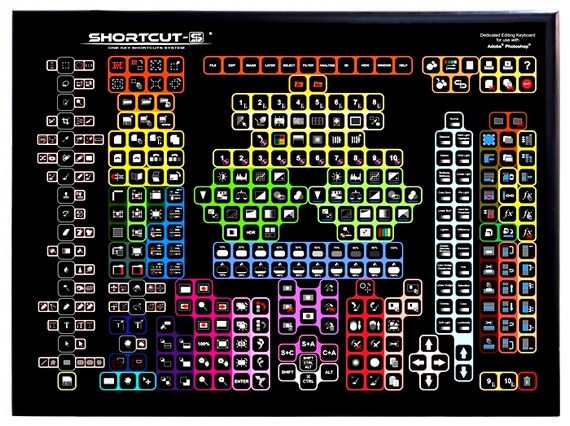
Shortcut-S Is A Specialty Keyboard For Adobe Photoshop Users


Anyone who uses Adobe Photoshop extensively has, no doubt, developed a system of working with the popular graphics editing software in an efficient manner.  A few weeks of some heavy editing work and you'll have that left hand typing shortcuts on your Logitech Washable Keyboard with as much certainty as you thumb-type on the tiny virtual keypad in your smartphone.  At least, that's how it's supposed to work.  If you find yourself still struggling to memorize the keystroke equivalent of the various software functions, the Shortcut-S can probably help streamline the experience.
Compatible with all Photoshop editions for PCs and Macs, the specialty keyboard provides physical buttons for the most frequently-used tools and functions available in Adobe's graphics editing application.  That way, there's no need to memorize shortcuts, hang a cheatsheet poster, or otherwise struggle trying to figure the various keystrokes out -- just press the corresponding button and you're done.

The Shortcut-S comes with a whopping 319 keys, arranged in a layout that looks, in some ways, similar to Photoshop's toolbar UI, which should make it just a tad easier to grasp.  Due to the sheer size and complexity, it's probably going to overwhelm a lot of people, but we imagine it's going to be easier to get used to compared to memorizing several hundred keystroke combos, especially with the graphical command labels.  The buttons are color-coded according to functions, too, making it easier to locate a particular color filter or an exact cutting command you've been looking to utilize.
An accompanying software controls the presets for the keys, although they can be personalized to your preferences as well.  They also sell a variety of overlays (with built-in software presets) for using the keyboard with other graphics programs, including CorelDraw, Adobe Lightroom, and more.
Currently, Shortcut-S is raising funds for a production run on Kickstarter.  Pledges to reserve a unit starts at $89.

Saturday, 3 January 2015

Customize folders with different colors in Windows

There are many softwares available today over the internet which can Customize your Computer in an efficient manner that it looks so attractive as well as it becomes very easy to use. We always want our computer to be clean and well organized so that whenever we need to access something or need to search a particular file/folder in our computer we could find it easily.
As similar to that, here I am going to share a software through which you can easily assign your favorite colors to your desired folders in order to differentiate them easily and to ease of access.
Customize folders with colors

How do i Customize folders with different colors ?


Just follow the two simple steps given below to customize your folder :

Step 1 :

First of all Download and install the software FolderColorizer. It is tested and 100% virus free. You can download it from here : DOWNLOAD FOLDERCOLORIZER

Step 2 :

Now after installing the software, simply right click on any folder which you wish to customize. Here when you right click on folder, you will see a new option in the context menu i.e. Colorize !. Now simply go to that option and one submenu will appear. Now choose any color you want to assign to this folder.
Although it is a free software for everyone to use it but while you will use this software for the very first time , it will just ask your email id for activation of this software. But no need to worry because you wont need to confirm the activation by logging in to your e mail account. Even if you don’t wish to share your e mail id with developers of this software you can do it because product will be activated automatically once you enter any email id. So you can also enter any fake id if you want.
For your convenience I am providing you a screenshot of above mentioned procedure for changing folder color :
Customize folders with different Colors
In this way you will be able to easily organize folders in any of your drive weather C: , D: or any other drive. You can also assign different colors to several folders in the same drive to give it more attractive and cool looks.

How to Unlock Pattern Lock on an Android Device

Pattern lock is used for providing an additional layer of security for your Android device. The pattern lock consists of a multiple dots and the user can set up a particular pattern initially which needs to be matched to provide authentication to use your system. Pattern lock is a useful way to protect your data on device. This helps in preventing any unauthorized personnel to access your device.
pattern lock
Just in case, if you forget the pattern then, you can follow below steps to unlock your pattern. Android Phones comes with built-in pattern unlocking mechanism to give security to phones. This is very easy to set and use but sometimes due to many wrong attempts, it gets locked permanently after which you need to enter the user ID of your Google play store to unlock your phone device. Just in case there is any problem to unlock the device, if you stop data usage in your phone, so it cannot be connected to internet and then you cannot afford to unlock this phone without using below steps.

Steps to Unlock Android phone without using Google Account

Just follow the below mentioned steps to unlock your phone and use it again for free.
  1. Switch off your Phone and wait for few seconds.
  2. Now hold “Volume Up + Home Key + Power Button” simultaneously at the same time until the phone boots again. You need to make sure that you press all three buttons together.
  3. Now a screen with DOS options will show up.
  4. Use Volume up and down key to navigate and scroll down to “Restore Factory defaults” or use “Delete all User data” depending on your device.
  5. After clicking on above selected option and scroll down to “Reboot System Now” and wait for your system to reboot.

Note:

  • This step will delete all your user data and applications.
  • In some phones the second step may use different set of keys to activate the boot prompt. You may use Volume UP/Down button + Power button. You can search for your specified android phone and check for how to set to factory settings again.

Unlock using Google Account

While trying for different patterns and unable to unlock the phone In 5 attempts, a message appears as pop up and shows buttons “next” and “try again”.
Click on next button and see two options for opening the phone. One is security question and second to provide Google Account details.
Mostly people don’t prefer to go for answer security question because you don’t set up your device so completely. Otherwise there is an option to click next. Now you can provide your Google Account username and password which is provided while you sign in. After this, you would be redirected to choose another new pattern and you can easily unlock the patterns.
After looking at the guide, you can now access your phone device and unlock pattern which you forgot while working on the device.

Screen Lock Options

Many Android devices run on at least Android 4.0 ICS and offers different security options to unlock your device. In addition to screen lock using pattern, there are various type of security access like PIN, password and even facial recognitions. It may be viable to provide different security facilities, but the major functionality remains the same throughout.

Conclusion

In this tutorial, you’ve learned two ways to unlock pattern lock on your Android Device, first one without using Google Account and another by using Google Account. So, if you have any query about it then do let us know, we’ll definitely try our best to resolve it.

 Don't forget to comment & share

Andromium Turns Your Android Phone Into A Full-Fledged Desktop Computer

Andromium The Next Evolution in Computing

Sure, you can use Android on a desktop, but the experience is hardly the most ideal, considering it’s optimized for touch-based mobile devices. Andromium is a hardware and software system that wants to change that.
Designed to turn your Android phone into a full-fledged computer, it overhauls the UI into one that resembles a real desktop machine. Like your desktops with a taskbar? This has one How about multiple windows on your screen at the same time? This does that. Prefer browsing websites in full desktop rendering? Use the system's bundled browser and enjoy.
The system is designed for compatibility with the Samsung Galaxy line of products (S and Note), running Android 4.4.2 and above. For those using other phones, they’re also adding support for HTC One M8, LG G3, Nexus 6, and One Plus One via Chromecast, although best experience will likely remain with the core Samsung smartphones.
A Kickstarter campaign is currently running for Andromium. Pledges to reserve a unit starts at $35.
Click on the link to watch video:

Don't forget to comment & share

Thursday, 1 January 2015

Change Facebook Theme, Color & Appearance (For Google Chrome)

Facebook is a social networking site which enables people to connect with friends and people around. That's how Facebook is usually introduced. However, Facebook is beyond the need of being introduced as almost everyone is on it. Despite its popularity, Facebook has one flaw; the default blue theme is really boring.

Some even consider it an annoyance while visiting Facebook. As Facebook does not allow users to change its theme like MySpace used to, users are left with no other option but to bear the theme Facebook wants them to use.

However, it is relatively easy to change the Facebook theme to a stylish one using an addon and custom themes which are available free of cost on the internet.

An example of the final outcome would be something like in the image.

                              
                                 This is the Ferrari theme. More themes are available for you to choose.


Requirement: The basic requirement for this to work is to have Mozilla Firefox or Google Chrome as your browser.


Steps for Google Chrome:
  1. Install Stylish for Chrome from the Chrome Web Store.
  2. Navigate to Facebook.com and click on the S button.
  3. Click on "Find Styles for this Site" to open a new tab with free themes to use for Facebook.
  4. Click on any theme and a preview will be shown.
  5. If everything is fine in the previewed theme, click on "Install with Stylish" button at the top right corner of the page.


Steps for Mozila Firfox:
  1. Open Mozilla Firefox and install 'Stylish' addon.
  2. Follow the basic steps to install the addon.
  3. Restart Firefox after successfully installing the Stylish addon.
  4. Login to your Facebook Account and click on the small 'S' button in your Firefox status bar.
  5. Click on "Find Styles for this Site" to open a new tab with free themes to use for Facebook.
  6. Click on any theme and a preview will be shown 
  7. If everything is fine in the previewed theme, click on "Install with Stylish" button at the top right corner of the page.
  8. A dialog box will open.
  9. Click on Install in the dialog box.

Now whenever you open Facebook, it will show the theme that you have installed with Stylish instead of the boring old blue theme....

Don't For Get To Share & Comment...!!!


Why Facbook color is blue...??? Intersting Fact

When you open Facebook, the first thing that you notice is the blue color it uses. Ever wondered why is Facebook so blue in color and not changing its color scheme?

Everywhere from its login page to Facebook groups, you find only blue.


The reason for this is that  Mark Zuckerberg, the young founder of Facebook is red-green color-blind and blue is the richest colour for him which he confirmed in an online interview with Leo Laporte.

Another important commercial factor for using blue color is the fact that most colors tend to distract the viewers. Blue on the other hand acts as a transparent background to the main content as visible to the human brain due to which most popular websites tend to use the blue color. It can easily be called a webmaster's favorite color. Blue color is also sometimes referred to as 'Nirvana' for the brain.

All these factors make blue a prominent color on Facebook.

If you are bored with Facebook's blue theme and want a stylish theme you can do this....